Print a payment sign for Venmo, Zelle and Cash App
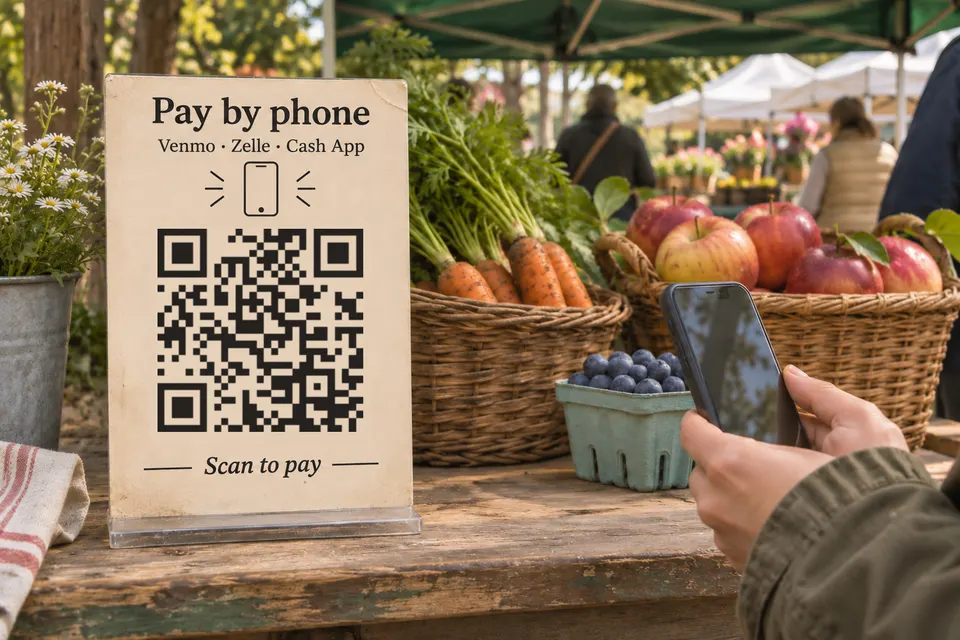
For one payment app, print its receiving QR code if your account offers one; Zelle codes depend on your bank. Accept several: print a separately labelled code for each, or put one bebber page on the sign with a payment button for each app that documents a link, plus manual instructions for Venmo and Zelle. Sources were checked on 2026-11-17.
What the sign says
A sign that serves four apps, with placeholders in brackets. Put your name or handle as plain text under the code, so a payer can compare it with the recipient name.
[Your name or stall name]
Pay by phone. Scan for payment options. Before you send money, check the recipient name on the payment app's confirmation screen: [your name].
Cash App: tap "Pay with Cash App"
PayPal: tap "Pay with PayPal"
Venmo: open Venmo, search @[username], confirm the name
Zelle: open Zelle in your banking app, enter [enrolled email or U.S. mobile number], confirm the name
On your bebber page, add a Cash App button, a PayPal button and text instructions for Venmo and Zelle.
Payment app codes and link alternatives
| App | Code to print for one app | Camera scans it? |
|---|---|---|
| Venmo, personal | Me tab, QR button on your profile picture, “Venmo me” | Yes |
| Venmo, business | Business profile, Charge, QR code, Venmo Me, printer icon | Test it |
| Cash App | Not documented; put the profile payment link on a bebber page (below) | Link opens from any camera |
| Zelle | Bank app, Zelle, QR icon, “My Code”; not at every bank | Scanned in the payer’s bank app |
| PayPal | Put the PayPal.Me link on a bebber page (below) | Link opens from any camera |
A Venmo business profile downloads a printable PDF of its code. A personal Venmo code can be shared by email and text, so for a sign take a screenshot and crop it. For Cash App, use the profile payment link from your profile and put it on a button. For PayPal, create your link at PayPal.Me or take it from the Profile section in your Account settings, and put it on a button. Add an amount to the end (PayPal.Me/Name/25) to request that amount. A PayPal.Me link “cannot be changed once it’s created” and “will never expire” (PayPal.Me FAQ).
Build the sign as a bebber
A bebber is the printed code plus the mobile page behind it. Update payment links without reprinting the sign. bebber does not process payments, and its buttons only open your payment provider’s link. The free plan allows 5 blocks per code.
- Open the bebber creator. No account is needed.
- Switch on “Advanced” and pick the “Blank” template.
- Choose “Add block”, then a text block. Write your name and “Pay by phone”.
- Choose “Add block”, then a button block. Label it “Pay with Cash App” and paste your Cash App profile link.
- Choose “Add block”, then a button block. Label it “Pay with PayPal” and paste your PayPal.Me link.
- Add a text block for Venmo: “Open Venmo and search for @[username]. Confirm the recipient name before paying.”
- Add a text block for Zelle: show your enrolled email address or U.S. mobile number, and tell the payer to open Zelle in their banking app, enter it and confirm the recipient name. Anyone who opens the page can read that text.
- Go through the Page, Code and Details steps, enter your email for the edit link, and press “Create my bebber”.
You then see the code to download as PNG, SVG or PDF, and you receive an email with the edit link. Scan the printed sign with your own phone and tap each button to check where it goes. Ask someone else to find your Venmo profile from the printed username before you print the final sign. This layout uses all five blocks the free plan allows per code: name, two buttons and two text blocks. To add another payment option, combine the text instructions into one block or use a paid plan for more blocks. If you already have a website you can edit, a static code that points at your own address does the same job.
Print the code so it scans
These are suggested trial sizes, not minimums. Print one, then test it at its real distance and in its real lighting.
| Read from | Trial width, border included |
|---|---|
| Arm’s length, about 50 cm (20 in) | 5 cm (2 in) |
| Counter or table, about 1 m (3 ft) | 10 cm (4 in) |
A scannable code needs an empty border of four modules, the small squares, on every side. DENSO, the format’s inventor, states this (DENSO sizing guidance). A code downloaded from bebber already includes that border, so do not add a second one. Codes from the payment apps may not, so leave the same space around them. The sign sizes page covers board and banner sizes.
Protect the sign and the payer
Scammers paste their own code over a real one. The FTC describes the case on parking meters: “covering up legit QR codes on parking meters with a QR code of their own”. A tip jar or stall sign is open to the same trick.
At setup, check for pasted stickers. Scan the code yourself. Print directly on the board or laminate it, so a pasted sticker stands out. Payers should read the recipient name on the payment screen and stop if it differs from the sign.
Rules and fees for taking sales payments
Before printing a sales sign, check that your account is authorized to receive sales payments. For a work tip jar, check your provider’s account rules before printing; do not assume the rules for gifts between friends apply.
- Venmo requires authorization to accept sales payments (Venmo’s rules). Use a business profile, or have the sender mark the payment as a purchase. Business profiles pay 1.9% + $0.10 on direct payments.
- Cash App offers business accounts for goods and services, and an “Earn in P2P” option for eligible sole proprietors who enroll (Cash App terms). Business-account processing fees can apply, so check the fee shown for your account before accepting sales.
- Zelle limits business use to eligible small businesses at banks that offer it, and fees depend on the bank (Zelle small-business FAQ).
- PayPal.Me is open to all account types, but business accounts can only accept Goods and Services payments (PayPal.Me FAQ).
What each app’s help says
- Venmo: the personal QR codes FAQ says the code “can be scanned with another user’s Venmo app or device camera”.
- Cash App: its send and receive guide describes “a unique link found in your profile that you can share through text or email”. Its payment links announcement describes reusable links that open with an amount and note filled in.
- Zelle: Zelle’s QR FAQ places the code on the “My Code” tab with print and share icons, and says it “is not available at all Financial Institutions”. Payers scan from the QR icon on the Select Recipient screen of their bank app. A code is tied to one enrolled number or email. PNC’s Zelle guide says that if you change either, “the Zelle QR Code will change”, and a printed Zelle sign then stops working.
- PayPal: the PayPal.Me FAQ says to “just share your very own PayPal.Me link” and payers do not need your email, phone number “or even have the PayPal app”. It also says you can “grab your PayPal.Me link from the Profile section in your Account settings”, and that a link can be turned off and on.
If the sign collects gifts rather than sales, the donation QR code page compares where small groups send donors.
Sources
- business profile help.venmo.com
- PayPal.Me FAQ paypal.com
- DENSO sizing guidance qrcode.com
- describes the case on parking meters consumer.ftc.gov
- Venmo's rules help.venmo.com
- 1.9% + $0.10 on direct payments help.venmo.com
- Cash App terms cash.app
- Zelle small-business FAQ zelle.com
- personal QR codes FAQ help.venmo.com
- send and receive guide cash.app
- payment links announcement cash.app
- Zelle's QR FAQ zelle.com
- PNC's Zelle guide pnc.com
Read next
How to make a QR code for donations
A donation QR code opens a link and moves no money. Compare where small groups send donors, then make a bebber page and print the code.
How big a QR code sign needs to be so people scan it
QR code sign size: start at the scanning distance divided by 10. Size table for counters, windows and yard signs, glare, placement, tamper checks.
What to put behind the QR code on a graduation invitation
What to put behind a QR code on a graduation card or party table: map and details, a photo look-back, a gift link, a guest album and RSVP, all free.
Ready to make your own?
Same idea, your content — done in about a minute.
Create your bebberNo sign-up. No credit card. Free forever.