How big a QR code sign needs to be so people scan it
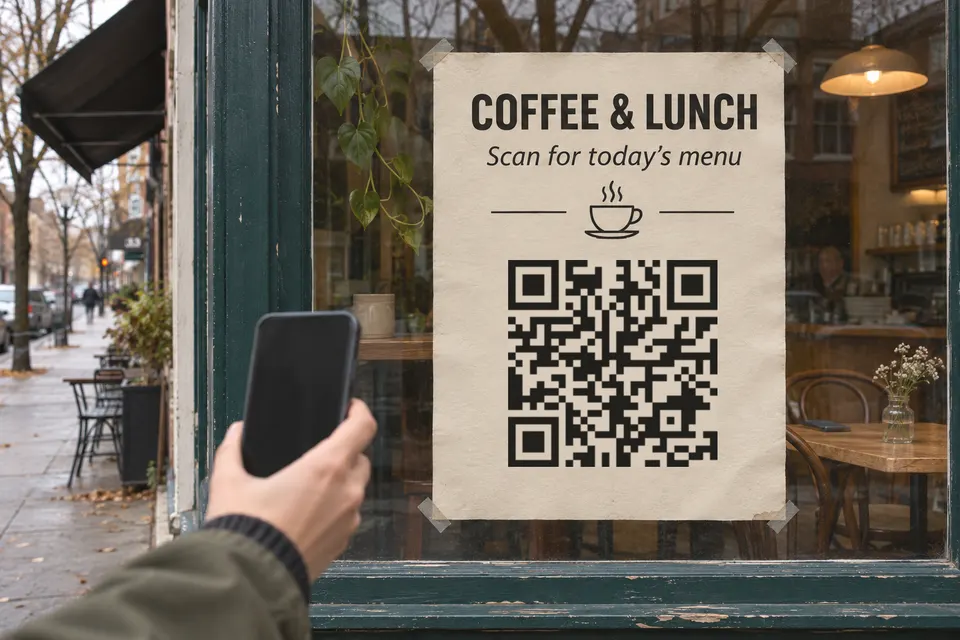
For a first test print, make the code one tenth as wide as the distance people scan from. At 60 cm that is about 6 cm, at 3 m about 30 cm. This is a rule of thumb, not a technical minimum, so scan a printed proof before you order the sign.
QR code size by scanning distance
Scanova writes “1 meter of scanning distance = 10 cm of code”. QRStuff gives the same ratio as “the maximum expected scanning distance divided by 10”. QRStuff’s example is a wall poster viewed from 5 feet, which needs a code about 6 inches wide. Neither page cites a measurement behind the ratio, so treat it as a starting point.
| Where the sign hangs | Scan distance (assumed) | Squares only: distance ÷ 10 | Outdoors, +25 to 50 % |
|---|---|---|---|
| Counter, table tent | 30 to 60 cm | 3 to 6 cm | not needed |
| Wall, shelf, window | 1.5 to 3 m | 15 to 30 cm | 19 to 45 cm |
| Yard sign, shop front | 5 to 10 m | 50 to 100 cm | 62.5 to 150 cm |
The ratio and the example come from the two vendors. The 25 to 50 % allowance is QRStuff’s recommendation for outdoor placements with glare, wind or moving viewers, so use the last column only for signs outdoors. The three scan distances are assumptions: measure your own spot and calculate distance in cm ÷ 10 = width in cm.
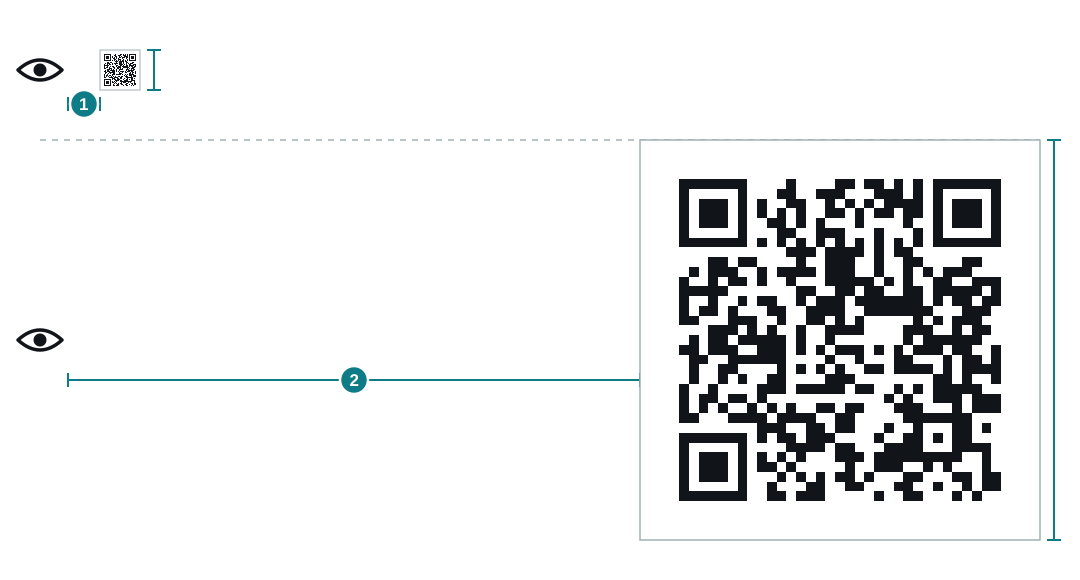
Scanova adds that “The more data you add, the bigger your QR Code needs to be.” The table assumes a short link, and a code with more squares needs more width.
Width with the margin
Neither vendor says whether its width includes the blank margin, so read the table as the squares only. DENSO WAVE, the inventor of the QR code, says a QR code “requires a four-module wide margin at all sides”. A module is one small square.
The code file you download from bebber already contains that margin, four modules on every side, so do not add a second border around it. To size it, count the modules along one edge of your code, call that N, and multiply the table width by (N + 8) ÷ N. For a 29-module code the outer image is 1.28 times the squares, so squares 6 cm wide give an image about 7.7 cm wide. Your code has its own N, so count it.
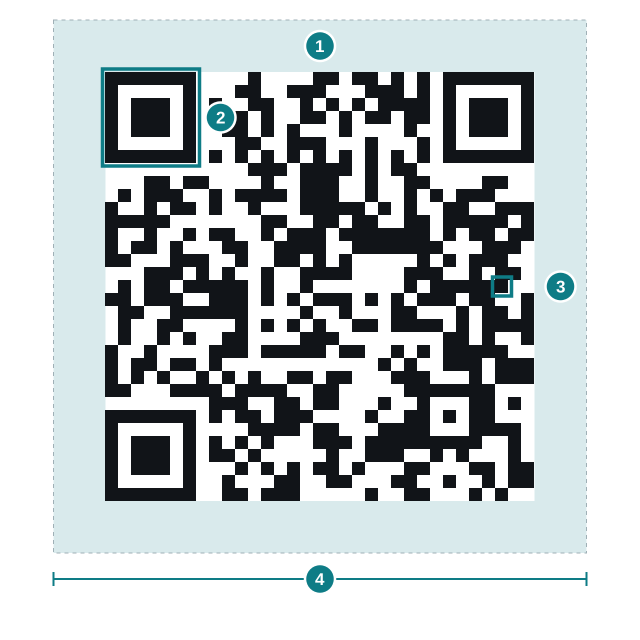
bebber’s PDF download comes in fixed sticker sizes. Each size is the outer size including the margin, so the squares are smaller than the stated width. For anything larger than a sticker, download the SVG and have the print shop scale it.
Contrast and margin
Vistaprint says to use black on white, a plain single-colour background, and to keep text, logos and images away from the code and from folds. Keep table edges, frames and stand lips out of the margin.
Glare from laminate, acrylic and glass
Vistaprint says shiny materials reflect light and make codes hard to scan. Its advice is matte instead of gloss, and no spot gloss over the code. That applies to laminated cards and glossy acrylic stands. Test window signs from outside at different times of day, and move the sign if reflections prevent scanning. For a movable stand, try another angle.
Placement, height and lighting
Dynamsoft names curved surfaces, which distort the code, and inconsistent lighting among the causes of failed scans. Put the code on a flat face where the phone can be held steady. Test it in the room’s real light, evening included.
Text next to the code
Print one line saying what the scan gives, such as “Scan for today’s menu” or “Scan for opening hours”. Under the code, print the visitor address in readable type. QRStuff recommends pairing any large code with a short text URL for people who cannot or will not scan.
Materials and file format
For table tents, acrylic stands, window decals and yard signs, ask the print shop for a matte finish and a proof. Vistaprint advises making a PDF proof at the actual size and scanning it before ordering. Download the code as SVG or PDF and send it to the printer. Ask them to confirm that the artwork stays sharp at the print size, because a PDF can hold raster images as well as vector shapes (Adobe).
Check public signs for replacement stickers
Scammers have covered real codes with their own, for example on parking meters. The FTC describes scammers “covering up QR codes on parking meters with a QR code of their own”, and advises inspecting the URL before opening it. Three checks follow from that:
- Scan your own sign when you open, and read the address your phone shows before you tap it. It should match the address printed on the sign.
- Look for a second layer: raised edges, a different finish or a code that sits off its frame.
- Print the actual visitor address under the code, so a customer can compare it with what the phone shows. A shop name alone does not prove which code is real.
Make a bebber for your sign
A static code that points to a website you own and can edit stays valid while you update that page, as long as you keep the domain. A bebber is for people who have no website to point at, or do not want to run one. The printed code stays the same and you edit the page behind it through the edit link that bebber emails you.
bebber is free, needs no account, has no expiry and no scan limit. The code depends on the service: if bebber stopped operating, the codes would stop resolving. If you need control that does not depend on bebber, use a static code to a domain you own. Download your bebber code as PNG, SVG or PDF, then arrange the printing.
An example for a cafe sign with opening hours and a menu PDF:
- Open /create and switch on the “Advanced” toggle, because a page with two blocks needs Advanced mode.
- Pick the “Blank” template, then use “Add block” for an opening hours block and a PDF block with the menu.
- Continue through the steps Page, Code and Details, then press “Create my bebber”.
- Download the code as SVG or PDF. An email with the edit link arrives. Keep it, because that link edits the page later.
- Print a proof at the sign’s real size. Scan it from where a customer stands and confirm that the correct hours appear and the menu PDF opens. Order the sign only after that.
The free plan holds 5 blocks per code. QR codes for payments covers where to find a Venmo, Cash App or Zelle code and how to print it. Open house sign-in covers a sign with a sign-in page. Do QR codes expire compares seven tools’ stated expiry policies.
Create your bebber for the sign.
Sources
- Scanova scanova.io
- QRStuff qrstuff.com
- DENSO WAVE qrcode.com
- Vistaprint vistaprint.com
- Dynamsoft dynamsoft.com
- Adobe helpx.adobe.com
- FTC describes consumer.ftc.gov
Read next
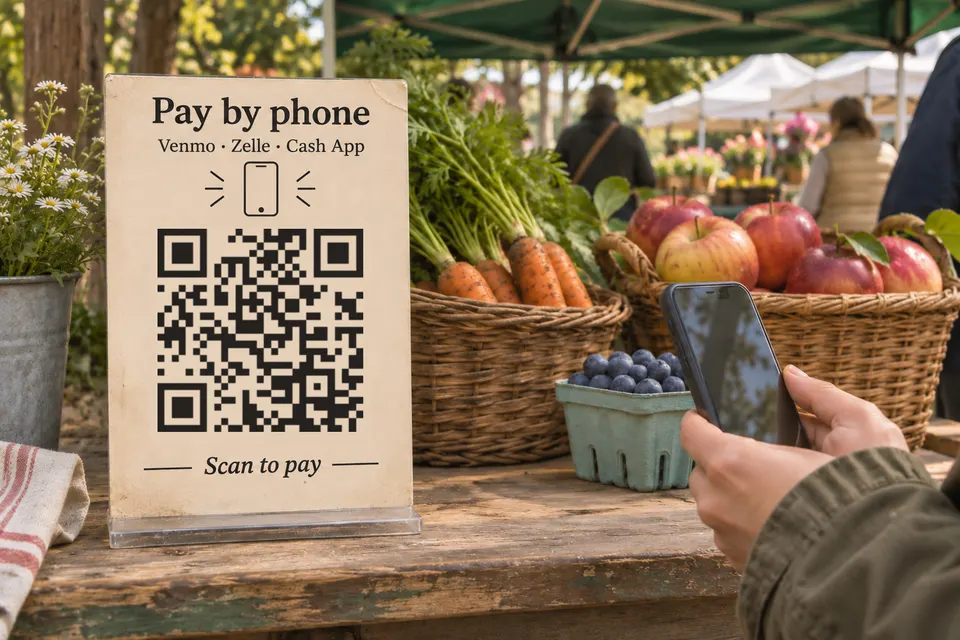
Print a payment sign for Venmo, Zelle and Cash App
Find your Venmo and Zelle QR code, use Cash App and PayPal.Me links, print a payment sign, and offer several apps from one code with a bebber page.
How to let open house visitors scan to check in
Visitors scan a code at the door to sign in and take the listing home. Free route with a Google Form, Pro route with a built-in form, with exact steps.
How to make a QR code for donations
A donation QR code opens a link and moves no money. Compare where small groups send donors, then make a bebber page and print the code.
Ready to make your own?
Same idea, your content — done in about a minute.
Create your bebberNo sign-up. No credit card. Free forever.