What to put behind the QR code on a graduation invitation
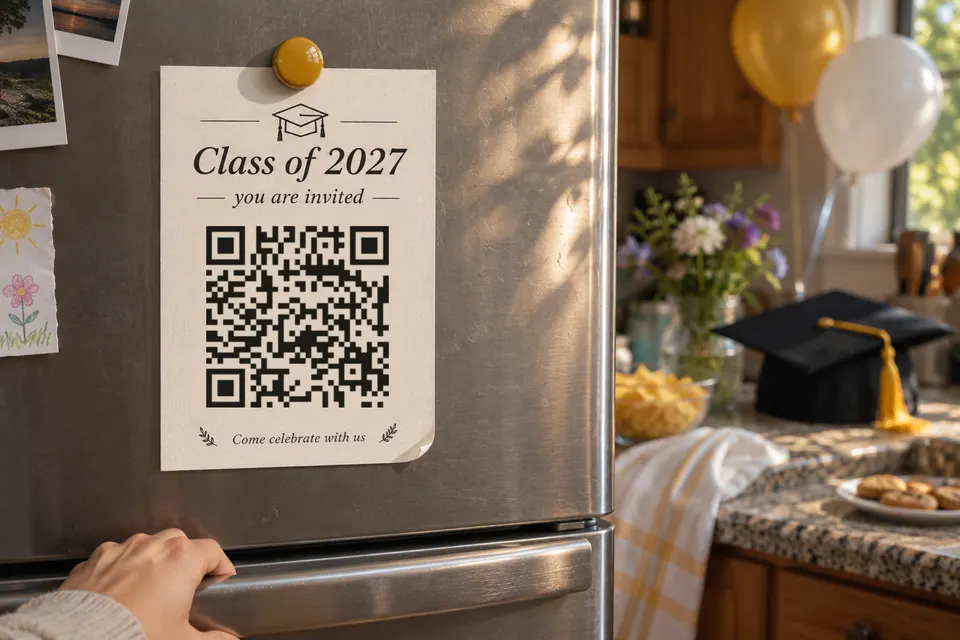
Put the party details, directions and an RSVP link behind the QR code on your graduation invitation. Optional extras are a photo or video look-back, a guest-photo album and a gift link.
The free bebber plan allows five blocks per code. This set covers all five uses:
| Block | Holds |
|---|---|
| Event | Date and time |
| Address | Map and directions link |
| Text | Parking and weather |
| Link list | RSVP, gift and album links |
| Image or Video | The look-back, within 25 MB |
Party details and a map
The Event block takes the date and start time, and a visitor can save the event to their calendar from it. For an open house, give the window (“1 to 5 pm”). The Address block offers a directions link, so a guest in the car does not retype the address. In the Text block, write where to park (which street, which side, whether the driveway is free) and the weather plan (“moves inside if it rains”).
Photo or video look-back
The free plan allows 25 MB of files per code. How many photos or how much video that is depends on how you export them, so check the file sizes before uploading. Images can be JPG, PNG, WebP or GIF; video MP4, WebM or MOV. If your slideshow is larger than 25 MB, host it with a video or photo service and link to it.
Sending a gift
A link can point to a payment profile or a gift registry. bebber does not handle money: the link opens the other service, and the payment happens there. Cash App’s help page describes a payment link in your profile that you can share by text or email. Open the link on a phone before printing and check that it lands on your profile. If you would rather not mention gifts on the card, put the gift link on the page, where a guest who wants to send something can find it.
For more on linking payment profiles, see QR codes for payments.
Guest photos on the day
bebber cannot receive uploads from the people who scan, so guests cannot add photos to your page. Use a shared album from a photo service and link to it. In Google Photos, turn on both link sharing and Collaborate for the album; the help page says “anyone who has the link to your shared album can add photos” when Collaborate is on. Google’s Android instructions for adding photos begin with “Sign in to your Google Account”, so plan for guests who contribute through the app to need one. Before printing, add a test photo through the shared link from another phone and check that it appears. Apple’s shared albums and other services have their own settings; the wedding page compares them and lists their limits.
RSVP
The Form block, which collects replies inside bebber, is part of the Pro plan (9 EUR a month). On the free plan, make the form elsewhere and link to it. For Google Forms, the help page says to click Publish, and that under General access you can allow anyone with a link. It also says that “Limit to 1 response” makes respondents sign in to their Google Account, so leave it off if guests should reply without signing in. Copy the responder link, then submit a test reply signed out on a phone before you print it. The answers stay in Google.
A reply is only needed if you need a headcount for food, seating or space. If you do, put a reply-by date on the card, for example “Reply by [date] at the code or to [your name]”.
Build your bebber with five free blocks
A bebber is the printed code plus the mobile page behind it. Steps:
- Open /create. It starts in Simple mode, which makes a page with one piece of content. Switch on the “Advanced” toggle and pick the “Blank” template.
- Choose “Add block” for each block in the table. Label the links “Reply to the invitation”, “Send a gift” and “Add your photos”.
- Go through the steps Page, Code and Details, then press “Create my bebber”.
- Download the code as PNG, SVG or PDF. You also get an email with the edit link; no account is needed.
A static code that points to a website you already run works too. A bebber is for hosts without a site to point at, or who do not want to run one, and it depends on bebber staying online.
Update your bebber before and after the party
| When | What the page shows | What you change |
|---|---|---|
| Before, on the mailed card | Event, address, parking, links | Nothing |
| During, on the table sign | Look-back, gift and album links | Add the look-back |
| After | Thank-you text, album link | Replace details with thanks |
Open the edit link, change the blocks, and the printed code opens the new page. Free pages have no expiry and no scan limit.
Who can open the page
A bebber page is not listed or indexed by search engines by default. Anyone who scans the code or has the link can open it, and a guest can forward it. If your home address is on it, you can add a free password and share it with the people you invited.
Print size and scan testing
The downloaded code file already has the clear border of four modules on every side, so do not add another. A module is one small square. Print it dark on a light background, and add a line saying what the scan gives, for example “Scan for the map and parking”.
Choose the size in your invitation layout, then print a proof on the final paper. Test it with two phones at the distance guests will use, and enlarge it if either one struggles. Denso Wave explains sizing by module. The code holds a bebber.com web address, so it has more modules than a code holding three words; check your own. Print one proof on the real paper, scan it with two phones at the distance guests will use, and only then order 100 cards. For other sizes and distances, see the signs page.
Sources
- Cash App's help page cash.app
- Collaborate support.google.com
- Android instructions for adding photos support.google.com
- help page support.google.com
- Denso Wave qrcode.com
Read next
Collect wedding photos with a QR code on your invitation
A QR code does not collect guest photos by itself. Compare Google Photos, iCloud and wedding apps, then print one code whose page changes with the day.
Print a payment sign for Venmo, Zelle and Cash App
Find your Venmo and Zelle QR code, use Cash App and PayPal.Me links, print a payment sign, and offer several apps from one code with a bebber page.
Should you put a QR code on your resume or CV?
A QR code on a printed resume can link to work samples. Use clickable links online. Includes placement, size and printing checks.
Ready to make your own?
Same idea, your content — done in about a minute.
Create your bebberNo sign-up. No credit card. Free forever.